> ## Documentation Index
> Fetch the complete documentation index at: https://docs.nofire.ai/llms.txt
> Use this file to discover all available pages before exploring further.
# Linear
> Connect Linear to NOFire AI for ticket triage, runbooks, and incident context
Connecting Linear to NOFire AI gives your investigations access to issues, projects, and team context directly from your Linear workspace. During incidents, NOFire can search past tickets for patterns, triage new issues, and add investigation findings as comments — without leaving Slack or the Chat dashboard.
Authentication uses a Linear **API key**. OAuth 2.0 support is coming soon.
This integration connects via Linear's [MCP server](https://linear.app/docs/mcp). NOFire communicates with Linear's hosted endpoint — no additional infrastructure needed.
## What this enables
* **Incident context**: search past issues and incidents for relevant patterns during investigations
* **Ticket triage**: assess and prioritize incoming issues based on production signals
* **Add comments**: post investigation findings, root cause summaries, or status updates to tickets
## Step 1: Create a Linear API Key
1. Go to **Settings** → **Account** → **Security & Access** in Linear
2. Under **Personal API keys**, click **Create key**
3. Name it `mcp-linear-nofire`
4. Select **Only select permissions** and enable: **Read**, **Write**, **Create issues**, **Create comments**
5. Under **Team access**, select **Only select teams** and choose the teams NOFire should access
6. Click **Create** and copy the key — you'll need it in Step 2
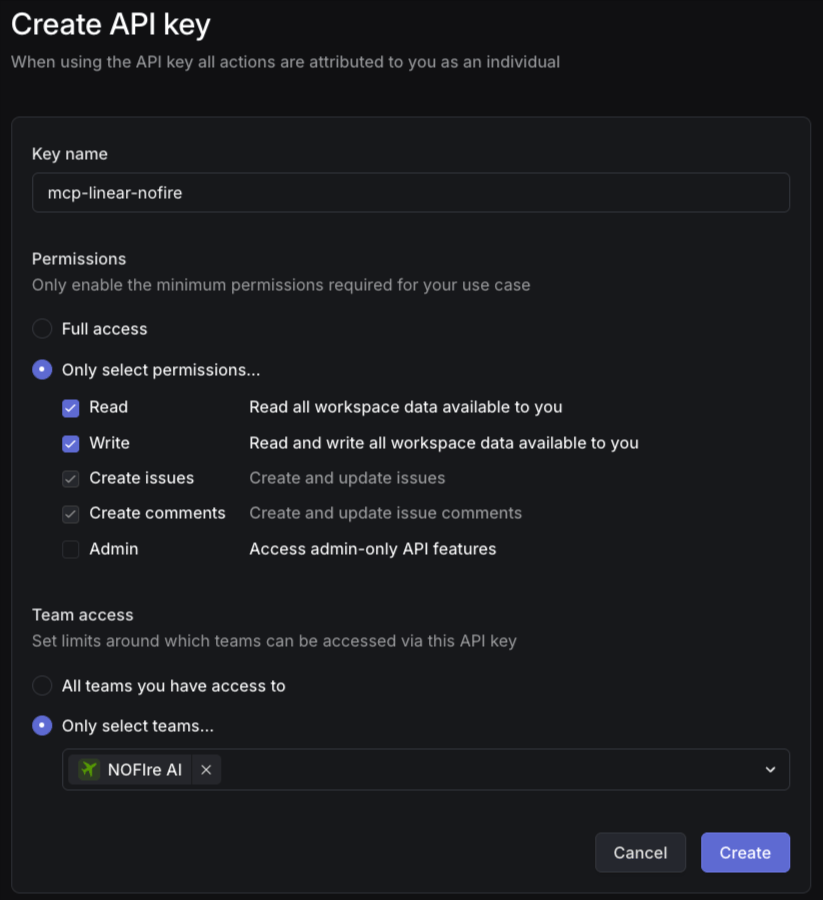 Avoid granting **Admin** access. NOFire only needs read/write to issues and comments within the teams you select.
## Step 2: Add Linear Connection in NOFire AI
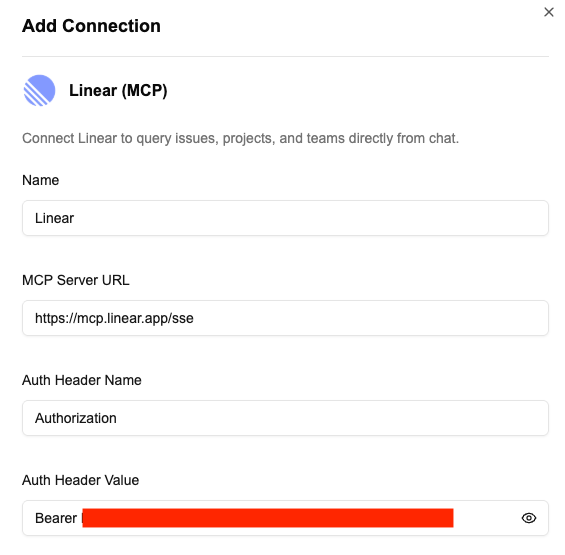
1. Go to the **Connections** tab in the NOFire AI dashboard at [my.nofire.ai](https://my.nofire.ai)
2. Select **Linear (MCP)** from the list and click **Next**
3. Enter:
* **Connection name** (e.g., `engineering-workspace`)
* **MCP Server URL**: `https://mcp.linear.app/sse`
* **Auth Header**: `Authorization`
* **Auth Value**: `Bearer `
4. Click **Save** to test the connection and establish the integration
Avoid granting **Admin** access. NOFire only needs read/write to issues and comments within the teams you select.
## Step 2: Add Linear Connection in NOFire AI
1. Go to the **Connections** tab in the NOFire AI dashboard at [my.nofire.ai](https://my.nofire.ai)
2. Select **Linear (MCP)** from the list and click **Next**
3. Enter:
* **Connection name** (e.g., `engineering-workspace`)
* **MCP Server URL**: `https://mcp.linear.app/sse`
* **Auth Header**: `Authorization`
* **Auth Value**: `Bearer `
4. Click **Save** to test the connection and establish the integration
 Once connected, NOFire AI can query your Linear workspace during investigations and chat sessions.
## Example queries
```
@NOFire AI find recent incidents related to the checkout service in Linear
```
```
@NOFire AI triage the latest P1 tickets — which ones correlate with production alerts?
```
```
@NOFire AI add the root cause summary to ticket ENG-1234
```
Once connected, NOFire AI can query your Linear workspace during investigations and chat sessions.
## Example queries
```
@NOFire AI find recent incidents related to the checkout service in Linear
```
```
@NOFire AI triage the latest P1 tickets — which ones correlate with production alerts?
```
```
@NOFire AI add the root cause summary to ticket ENG-1234
```