

What this enables
- Code context: search repositories and code, read files, commits, merge requests and diffs, and compare refs during investigations and in chat.
- Change events: pushes, tag pushes, merge requests, releases and deployments arrive through a group webhook and are correlated with production behavior.
Prerequisites
- A GitLab group on Premium or Ultimate. Group access tokens and group webhooks are not available on GitLab Free.
- The Owner role in that group, to create the token and the webhook.
- For self-managed GitLab:
- The instance must be reachable from NOFire AI. Use HTTPS with a publicly trusted certificate: over HTTP, the token is sent in plaintext. If you restrict inbound traffic, contact [email protected] for the addresses to allow.
- The instance must be able to reach NOFire AI, to deliver webhooks. If you restrict outbound traffic, allow the host in the NOFire AI webhook URL from Step 3.
Step 1: Create a group access token
Generate a group access token in GitLab
Generate a group access token in GitLab
- In GitLab, open the group you want NOFire AI to read. NOFire AI reads every project in the group and its subgroups.
- Go to Settings → Access tokens and click Add new token.
- Name the token, for example
NOFire AI, and set an expiration date. - Select the Reporter role.
- Select the
read_apiandread_repositoryscopes. Theapiscope also works, but grants more than NOFire AI needs. - Create the token and copy it. GitLab shows it only once. You enter it in Step 2.
Step 2: Add the GitLab connection in NOFire AI
Configure the connection
Configure the connection
-
Open Connections and click Connect on GitLab.

-
Enter:
- Name, for example
gitlab-acme - GitLab URL: the address you open GitLab at, without
/api/v4. For examplehttps://gitlab.comorhttps://gitlab.example.com. - Group path: the group or subgroup as it appears in its URL, for example
acme/platform - Group access token: the token from Step 1
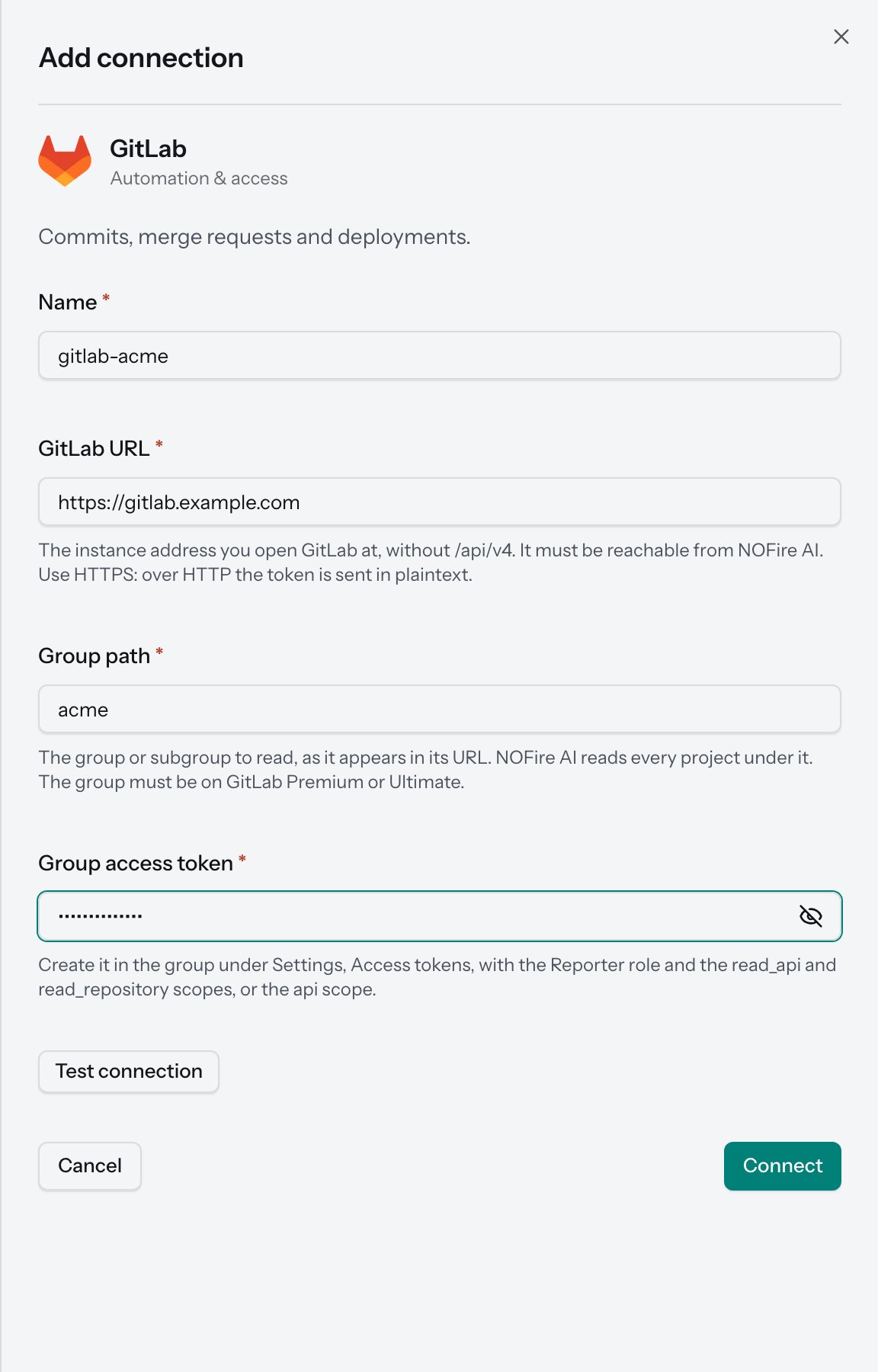
- Name, for example
-
Click Test connection. NOFire AI checks the token’s scopes and expiry and that it can see the group. A passing test shows Token and group accepted.
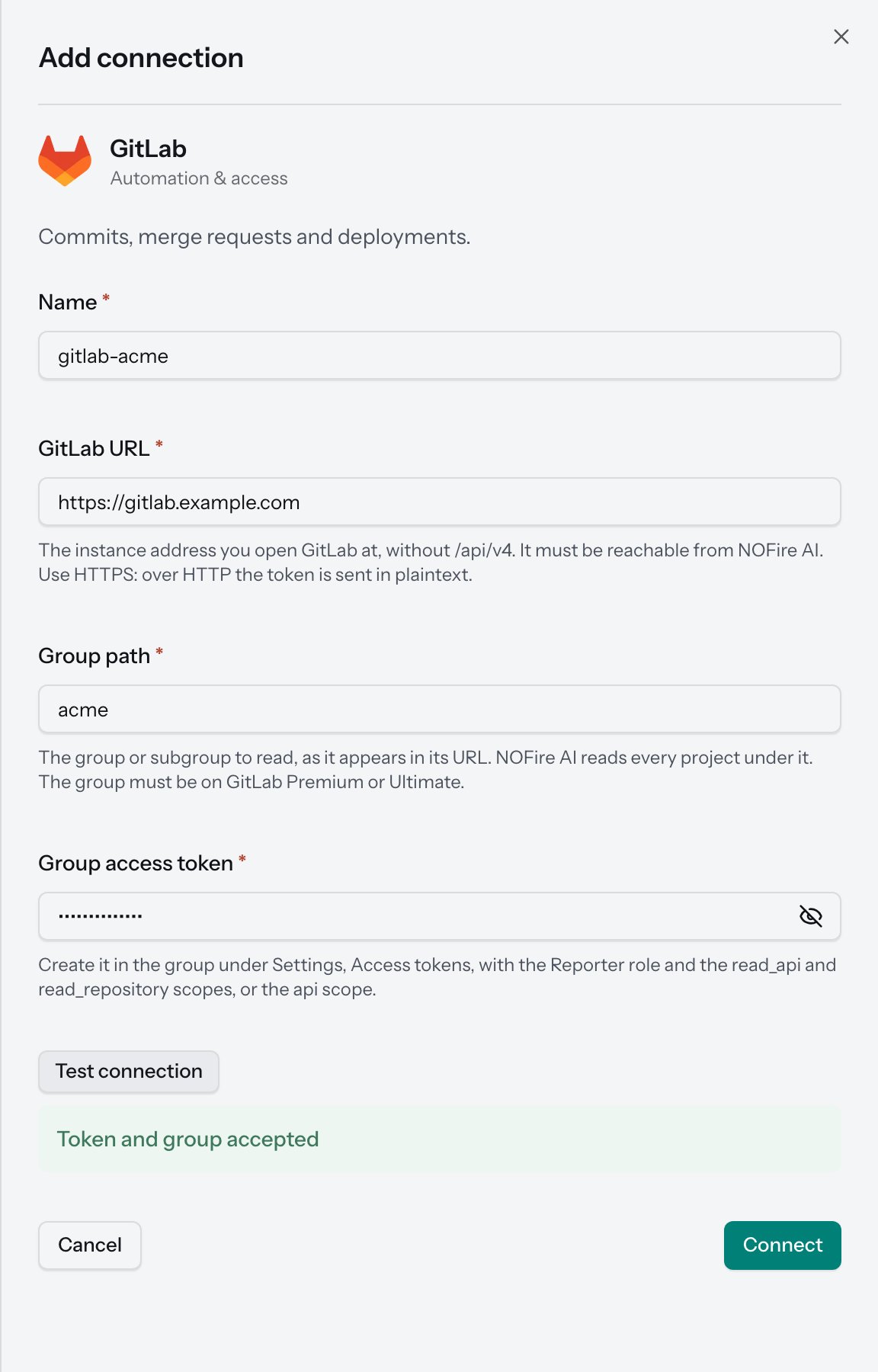
- Click Connect.
Step 3: Add the group webhook
The webhook sends change events to NOFire AI. Without it, code context still works, but no change events arrive.Create the webhook secret in NOFire AI
Create the webhook secret in NOFire AI
- In Connections, find the GitLab connection and click Manage.
-
Click Create webhook secret. NOFire AI shows the Webhook URL and the Secret token.
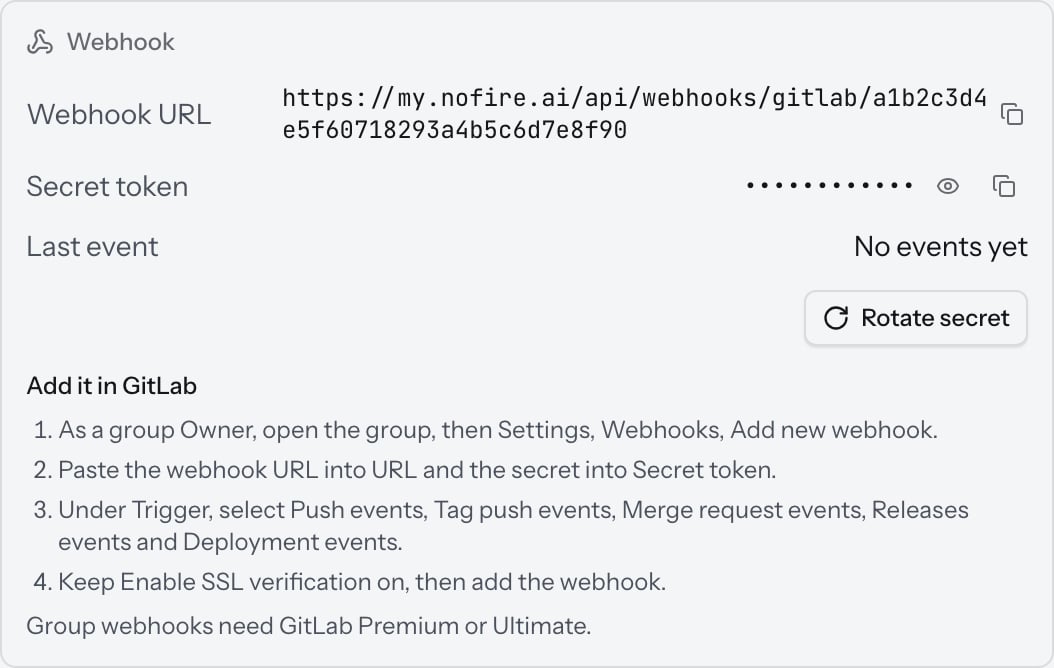
Add the webhook in GitLab
Add the webhook in GitLab
- In GitLab, open the same group and go to Settings → Webhooks → Add new webhook.
- Paste the NOFire AI webhook URL into URL and the secret into Secret token.
- Under Trigger, select:
- Push events
- Tag push events
- Merge request events
- Releases events
- Deployment events
- Keep Enable SSL verification on, then click Add webhook.
Test the connection
- Open Connections and make sure that the GitLab connection shows Connected. A connection that shows Failing did not authenticate.
- In GitLab, open the webhook and click Test → Push events. In NOFire AI, Last event in the connection’s webhook panel updates to the time of the test.
- Ask NOFire AI about a recent merge request in one of the group’s projects. An answer that names it confirms that code access works.
Troubleshooting
GitLab did not accept the token
GitLab did not accept the token
The token is wrong, expired or revoked. Create a new group access token and update the connection.
The GitLab token is missing required scopes
The GitLab token is missing required scopes
Create a new group access token with the
read_api and read_repository scopes. GitLab does not let you add scopes to an existing token.GitLab group not found, or the token cannot see it
GitLab group not found, or the token cannot see it
Check that Group path matches the group’s URL, and that the token was created in that group or a parent group.
The connection test warns that the token expires soon
The connection test warns that the token expires soon
The connection stops working when the token expires. Create a new token before then and update the connection.
No events arrive
No events arrive
Check that the webhook is on the group connected to NOFire AI, that its triggers include the events above, and that the secret token matches the one in NOFire AI. On self-managed GitLab, also check that the instance can reach NOFire AI through your firewall. GitLab lists each delivery and its response or error under the webhook’s Recent events.