

How it works
Overview
NOFire AI brings your system context into Slack. It connects to your observability stack (Grafana, Prometheus, Loki, Datadog, Tempo, etc.) and helps your team investigate an alert in the channel where it landed.Problems we solve
SRE teams face alert fatigue, long resolution cycles, and knowledge silos. NOFire AI automates triage, runs root cause analysis, and integrates with Slack, so your team reads the findings where the alert already landed.Features & interactions
1. Automatic Alert Responses The NOFire bot investigates new alerts as they arrive in the channels it was invited to. When your observability tools (Grafana, Datadog, PagerDuty, etc.) post an alert, NOFire automatically responds in the thread with root-cause analysis and actionable findings. 2. Interactive Investigations Tag@NOFire AI to ask questions about incidents using data from connected observability sources. This works both in a thread on an alert (responding to automatic investigations) as well as starting a new conversation.
3. Production Queries
Ask NOFire about your systems at any time: recent deployments, service dependencies, architecture questions, or what changed in the last hour. No incident required.
Before you start
- NOFire AI account at my.nofire.ai
- Slack workspace admin permissions
- Connected observability sources (Grafana, Prometheus, Loki, etc.)
Installation steps
1
Navigate to Connections
Log in to NOFire AI at my.nofire.ai and go to Settings > Connections.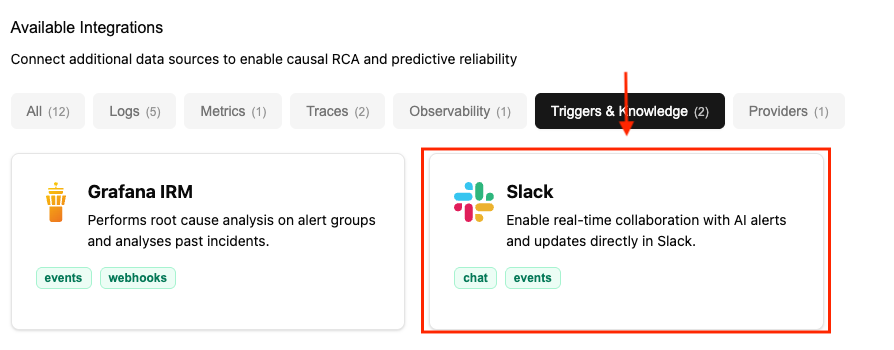
2
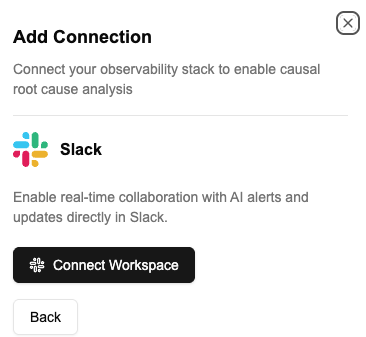
Select Slack Integration
From the available connections, select Slack and click Connect Workspace.
3
Authorize in Slack
In the Slack authorization page, review the permissions and click Allow.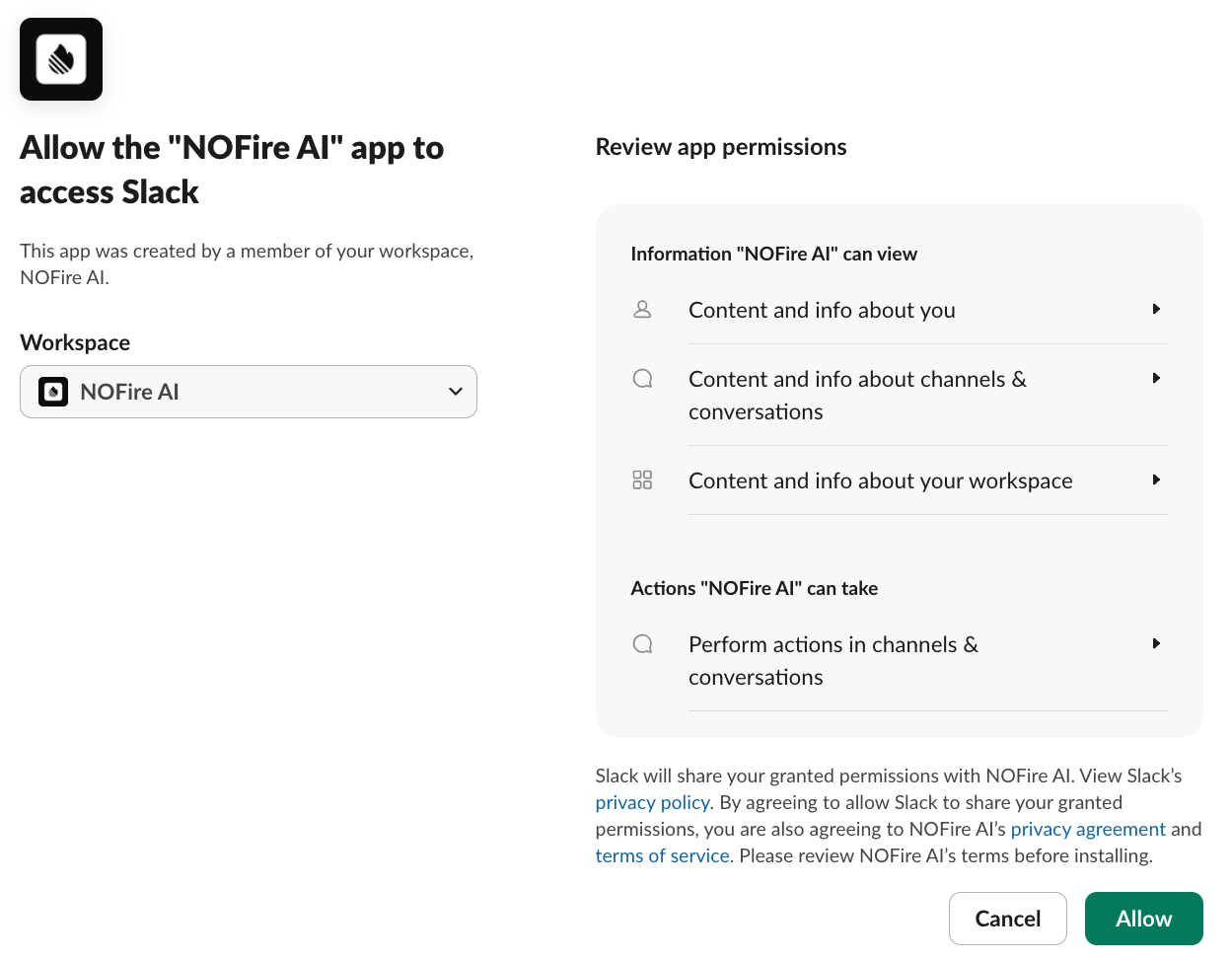
NOFire requires these permissions to:
- Read messages where the bot is @mentioned
- Post investigation results in threads
- Access your workspace’s user directory for authentication
4
Invite Bot to Channels
In any Slack channel where you want to use NOFire:Or alternatively:
You must invite the bot to a channel before you can @mention it. This works for both automatic alert investigations and ad-hoc questions.
5
Test the installation
Test your installation by @mentioning the bot:You should receive a response within seconds.
App scopes
View all permissions NOFire requests
View all permissions NOFire requests
The NOFire Slack app requests these OAuth scopes:
NOFire only reads messages in channels where it is invited or @mentioned. We never access content from channels where the bot is not present.
Post-installation
1. Account access
If you logged in with Slack: Your account is already linked - you are ready to use NOFire in Slack immediately. If you were added by an administrator: You will need to link your Slack account:- Go to Account > Slack at my.nofire.ai
- Click Link Slack Account
- Authorize with Slack
2. Set up alert channels
For automatic investigations:- Invite
@NOFire AIto your alert channels:/invite @NOFire AI - Make sure that your alerting tools, such as Grafana and Datadog, post to these channels
- NOFire will automatically investigate new alerts
Common issues
Bot does not respond when I @mention it
Bot does not respond when I @mention it
Check:
- You logged in with Slack or linked your account at my.nofire.ai
- You are using the correct @mention:
@NOFire AI - Bot is invited to the channel:
/invite @NOFire AI - Your NOFire account has observability sources connected
Contact your administrator message
Contact your administrator message
Your Slack account is not linked to NOFire yet.Fix options:
- Easiest: Logout and login with Slack at my.nofire.ai
- Alternative: Link your account manually at Account > Slack > Link Slack Account
Alerts are not being investigated automatically
Alerts are not being investigated automatically
Test it:
- Bot is invited to the channel:
/invite @NOFire AI - Your alerting tool is configured to post to that channel
- Alerts contain proper alert data (not just plain text)
Next steps
How It Works
Learn more about automatic investigations and interactive queries