

NOFire AI supports both Elastic Cloud and self-hosted Elasticsearch instances. For self-hosted instances, NOFire AI can connect securely using an AWS VPC PrivateLink. This keeps all traffic inside your network boundary.
Prerequisites
Before you connect Elasticsearch to NOFire AI, make sure that you have:- An Elasticsearch cluster (Elastic Cloud or self-hosted)
- Network access to your Elasticsearch endpoint from NOFire AI
- Admin access to create users and API keys
Step 1: Configure Elasticsearch authentication
Elastic Cloud
Create API Key in Elastic Cloud
Create API Key in Elastic Cloud
- Sign in to Elastic Cloud
-
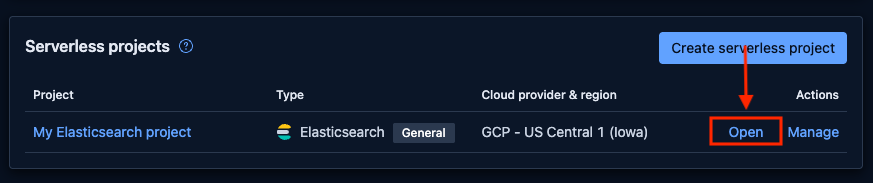
Open your deployment: Click the deployment that you want to open
-
Copy the Elasticsearch Endpoint: On the deployment page, copy the Elasticsearch endpoint URL. You will need this later.

-
Create API Key:
- Go to Security > API keys
- Click Create API key

-
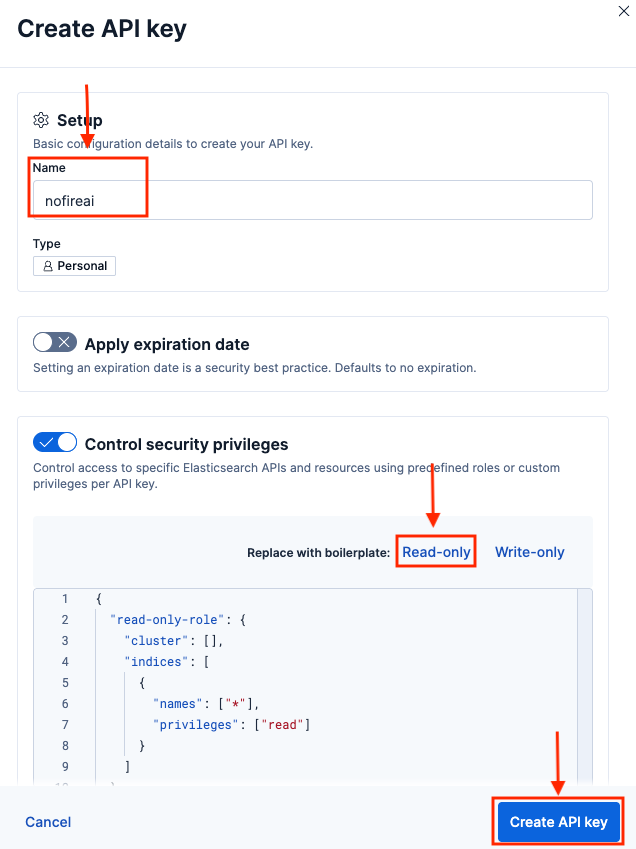
Configure API Key:
- Name: Enter
nofireai - Control security privileges: Select read so that the key has read-only access
- Index privileges: Click read-only access
- Click Create API key
- Name: Enter
-
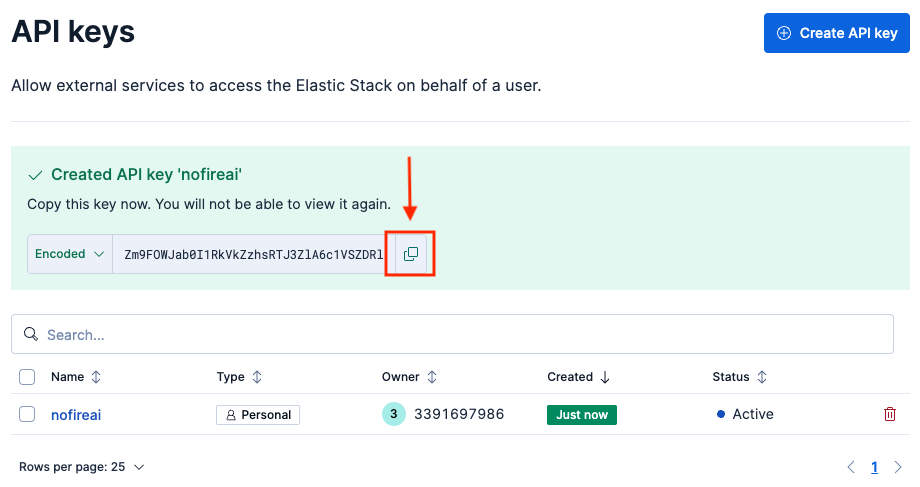
Save API Key:
Copy the API key value (the encoded string, not the ID).
Self-hosted Elasticsearch with API key
Create API Key in Self-Hosted Elasticsearch
Create API Key in Self-Hosted Elasticsearch
-
Access Kibana: Navigate to your Kibana URL (typically
https://your-elasticsearch-host:5601) - Log in: Use your Elasticsearch admin credentials
-
Navigate to Stack Management: Open the hamburger menu (☰) and go to Management > Stack Management
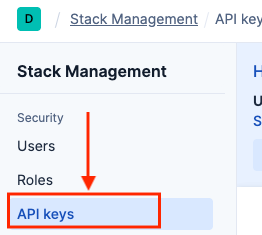
- Create API Key: Follow steps 6-8 from Option A above
Step 2: Add Elasticsearch connection to NOFire AI
-
Go to Connections and click Connect on Elasticsearch.
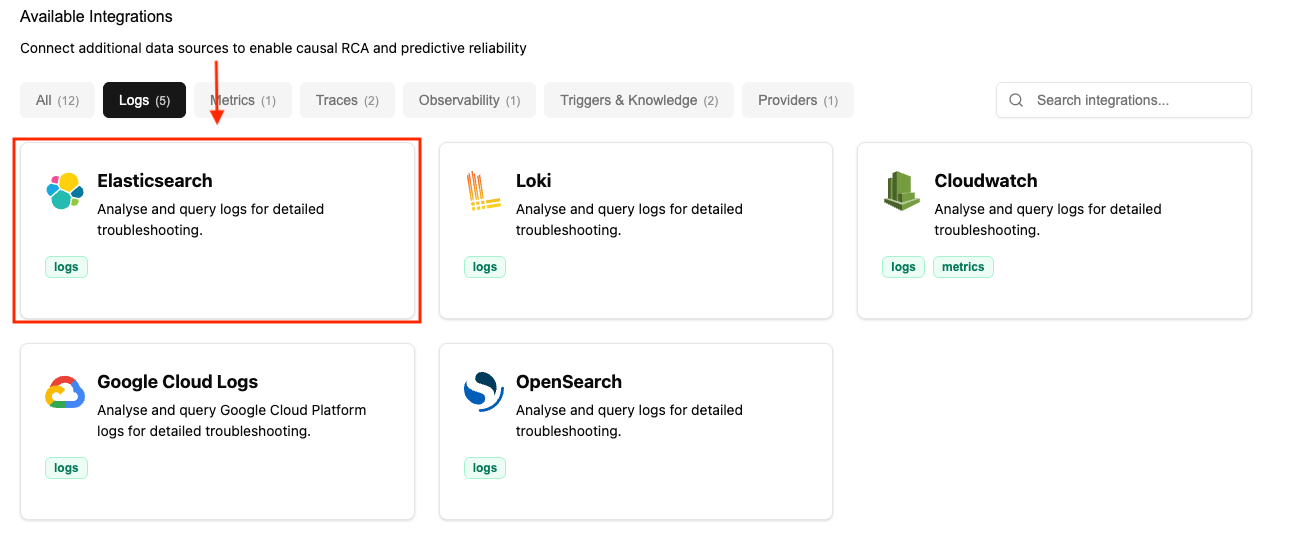
-
Enter Connection Details:
- Name: Enter a descriptive name (for example, “production-elasticsearch”)
- URL: The endpoint for your Elasticsearch instance (including the port number)
- Example:
https://my-elasticsearch-project-a09d34.es.us-central1.gcp.elastic.cloud:443
- Example:
- Token: The API key that you generated in the previous step
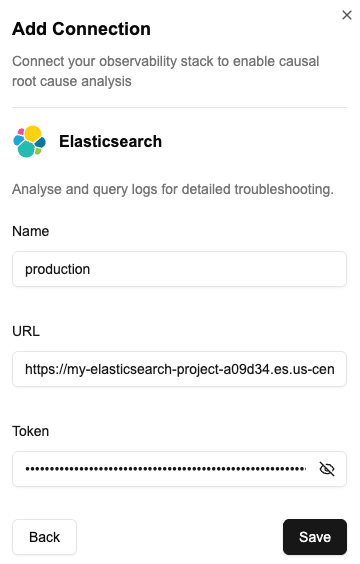
- Save: Click Save. NOFire checks the credentials and creates the connection. After you connect to your log source, NOFire AI queries and analyzes logs on demand as part of its automated root cause analysis. Logs enrich the investigation process.
Test the connection
- Open the Connections dashboard and make sure that the Elasticsearch connection status is READY. A connection that stays in an error state did not authenticate.
- Ask NOFire a question that needs logs, for example “show me the errors for the checkout service in the last hour”. An answer that quotes your log lines confirms the connection works end to end.
Troubleshooting
Common Issues
Common Issues
Connection Timeout
If your connection times out:- Make sure that your Elasticsearch endpoint is accessible from NOFire AI’s network
- For Elastic Cloud, check your deployment’s traffic filters
- Make sure that firewall rules allow traffic on port 9200 or 9243 (Elastic Cloud)
Authentication Failed
If authentication fails:- Make sure that the API key or user is not revoked or expired
Forbidden or Authorization Errors
If you see 403 Forbidden errors:- Make sure that the API key or user has the correct index privileges
- Make sure that the role includes
readandview_index_metadataprivileges - Make sure that the index pattern in the role configuration matches the indices that you are querying
SSL Certificate Errors
For self-hosted instances with SSL errors:- Make sure that your SSL certificate is valid and not self-signed (or add it to trusted certificates)
- Make sure that the hostname in the URL matches the certificate