

Prerequisites
- A Datadog account, and permission to create API keys and application keys in it.
- Your Datadog site API URL. The table on this page lists them.
Step 1: Create Datadog API and application keys
Create API Key
Create API Key
- Navigate to Datadog API Keys
- Click + New Key
- Name it
nofireand click Create Key - Click Copy and save the key securely to use in Step 2
Keep your API key secure. You will not be able to view it again after leaving this page.
Create Application Key
Create Application Key
- Navigate to Datadog Application Keys
- Click + New Key
- Name it
nofireand click Create Key - Click Copy and save the key securely to use in Step 2
Step 2: Add Datadog connection to NOFire AI
-
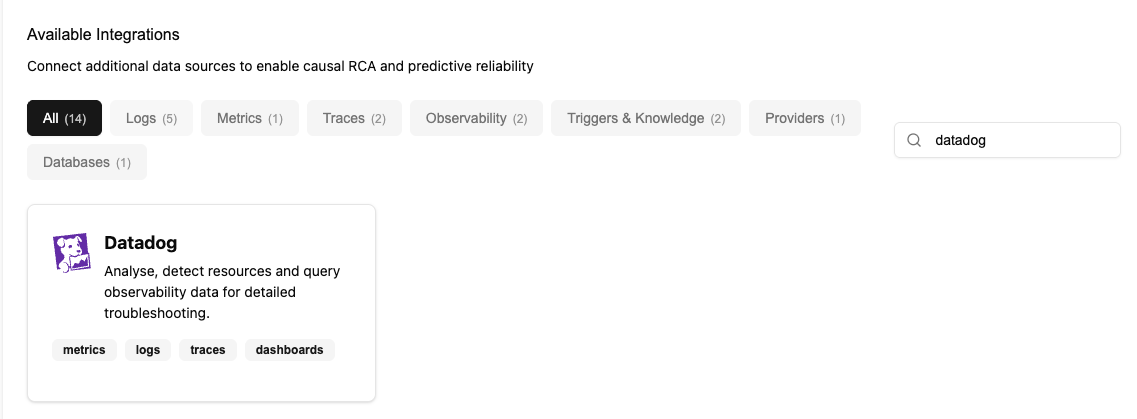
Go to Connections and click Connect on Datadog.
-
Enter credentials:
- Name (e.g., production)
- Site API URL (e.g.,
https://api.datadoghq.comfor US1, or your specific Datadog site URL) - API Key (from Step 1)
- Application Key (from Step 1)
Click Save to test the connection and establish the integration. NOFire AI then begins to analyze your telemetry and build the graph of your infrastructure. Processing time depends on the size of your environment.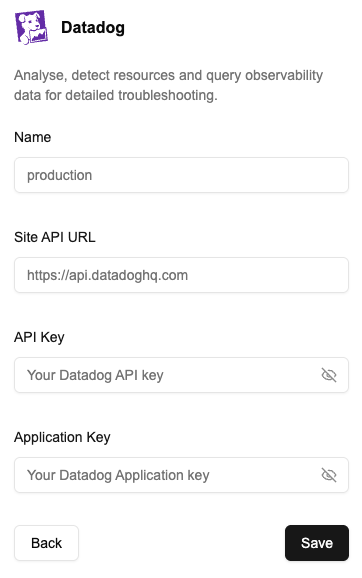
Supported Datadog site URLs
Depending on your Datadog region, use the appropriate Site API URL:- US1:
https://api.datadoghq.com - US3:
https://api.us3.datadoghq.com - US5:
https://api.us5.datadoghq.com - EU1:
https://api.datadoghq.eu - AP1:
https://api.ap1.datadoghq.com
Test the connection
- Open the Connections dashboard and make sure that the Datadog connection status is READY. A connection that stays in an error state did not authenticate.
- Ask NOFire a question that needs metrics, for example “what is the error rate for the checkout service right now?”. An answer that cites your Datadog data confirms the connection works end to end.
Troubleshooting
The connection fails to authenticate
The connection fails to authenticate
The site API URL does not match the region the keys belong to. A key created in EU1 does not work against
https://api.datadoghq.com.The connection saves but one signal is missing
The connection saves but one signal is missing
The application key is scoped and is missing the scope for that signal. The scope list in Step 1 names the scope for each one.