

This integration connects through the Linear MCP server. NOFire AI calls the hosted endpoint of Linear. You do not run any infrastructure for it.
What this enables
- Incident context: search past issues and incidents for relevant patterns during investigations
- Ticket triage: assess and prioritize incoming issues based on production signals
- Add comments: post investigation findings, root cause summaries, or status updates to tickets
Prerequisites
- A Linear workspace, and permission to create a personal API key in it.
- The Linear teams you want NOFire AI to read.
Step 1: Create a Linear API key
Generate an API key in Linear
Generate an API key in Linear
- Go to Settings → Account → Security & Access in Linear
- Under Personal API keys, click Create key
- Name it
mcp-linear-nofire - Select Only select permissions and enable: Read, Write, Create issues, Create comments
- Under Team access, select Only select teams and choose the teams NOFire should access
- Click Create and copy the key. You enter it in Step 2.
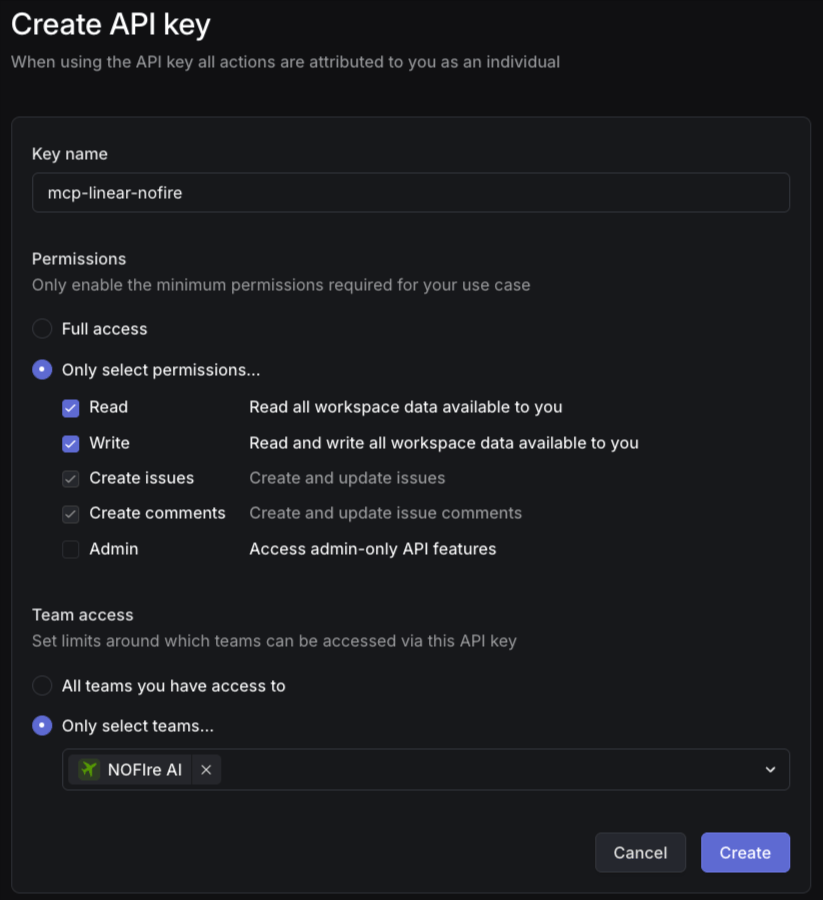
Avoid granting Admin access. NOFire only needs read/write to issues and comments within the teams you select.
Step 2: Add Linear connection in NOFire AI
Configure the connection
Configure the connection
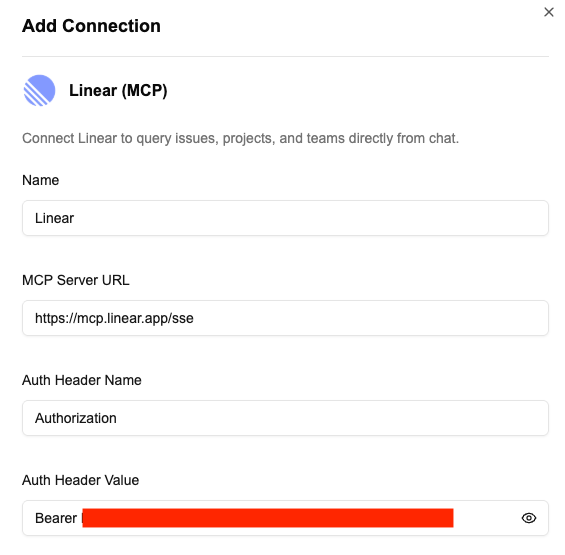
- Go to the Connections tab in the NOFire AI dashboard at my.nofire.ai and click Connect on Linear (MCP).
-
Enter:
- Name (e.g.,
engineering-workspace) - MCP Server URL:
https://mcp.linear.app/sse - Auth Header:
Authorization - Auth Value:
Bearer <your-api-key>
- Name (e.g.,
- Click Save to test the connection and establish the integration
Example queries
Test the connection
- Open the Connections dashboard and make sure that the Linear connection status is READY. A connection that stays in an error state did not authenticate.
- Ask NOFire a question that needs a ticket you know exists, using one of the example queries below. An answer that names the ticket confirms the connection works end to end.
Troubleshooting
The connection fails to save
The connection fails to save
The auth value must be the word
Bearer, a space, and then the key. A key pasted on its own is rejected.NOFire AI finds no tickets
NOFire AI finds no tickets
The key is scoped to teams that do not hold those tickets. Edit the key in Linear and add the teams.